Everything you need to know to use Taxlane, from your first sign-in to everyday invoicing. You don't need any technical knowledge. If you only have five minutes, read the Quick start below.
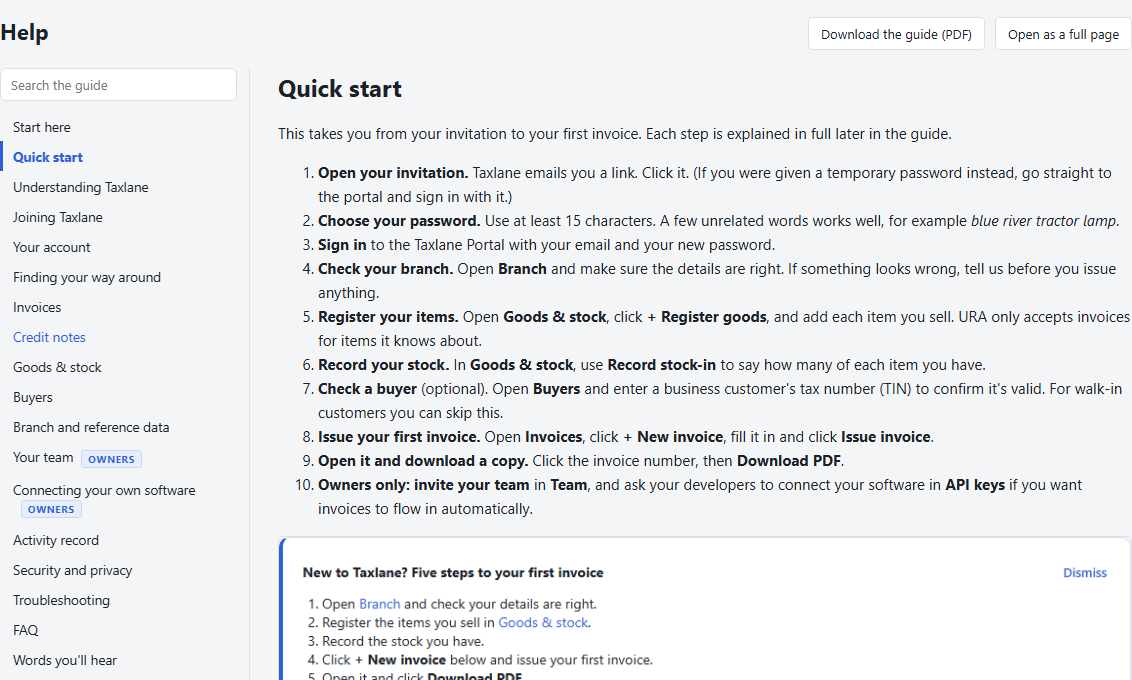
#Quick start
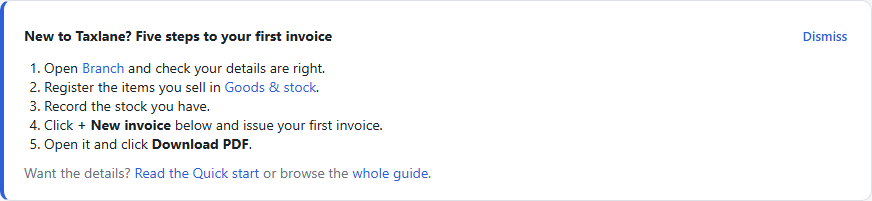
This takes you from your invitation to your first invoice. Each step is explained in full later in the guide.
- Open your invitation. Taxlane emails you a link. Click it. (If you were given a temporary password instead, go straight to the portal and sign in with it.)
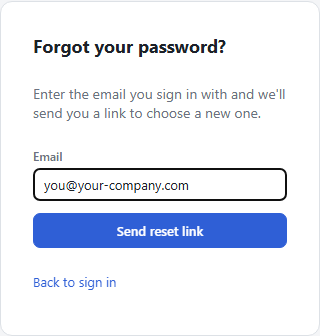
- Choose your password. Use at least 15 characters. A few unrelated words works well, for example blue river tractor lamp.
- Sign in to the Taxlane Portal with your email and your new password.
- Check your branch. Open Branch and make sure the details are right. If something looks wrong, tell us before you issue anything.
- Register your items. Open Goods & stock, click + Register goods, and add each item you sell. URA only accepts invoices for items it knows about.
- Record your stock. In Goods & stock, use Record stock-in to say how many of each item you have.
- Check a buyer (optional). Open Buyers and enter a business customer's tax number (TIN) to confirm it's valid. For walk-in customers you can skip this.
- Issue your first invoice. Open Invoices, click + New invoice, fill it in and click Issue invoice.
- Open it and download a copy. Click the invoice number, then Download PDF.
- Owners only: invite your team in Team, and ask your developers to connect your software in API keys if you want invoices to flow in automatically.
#Understanding Taxlane
#What Taxlane does
Uganda Revenue Authority (URA) requires businesses to report every sale to its EFRIS system. Each sale produces a tax invoice with a unique number and a QR code. Doing this directly with URA is technical and unforgiving. Taxlane sits between your business and URA and does the technical part for you.
Through the Taxlane Portal you can:
- issue tax invoices, one at a time or many at once,
- see all your invoices in one place, and download a PDF of any of them,
- correct an invoice properly with a credit note,
- register your items and keep your stock up to date with URA,
- check a buyer's tax number before you invoice them,
- see a permanent record of everything sent to URA on your behalf.
Taxlane can also connect directly to your accounting, sales or stock software so invoices flow through without anyone retyping them. See Connecting your own software.
#How an invoice travels
- Your business makes a sale and needs a tax invoice.
- Taxlane prepares the invoice, signs it securely, sends it to URA, and keeps a copy and a record of what happened.
- URA checks it and answers with an invoice number, a verification code and a QR code. Taxlane brings these back to you in seconds.
If your software or your connection drops halfway, Taxlane checks before it tries again, so the same invoice is never filed with URA twice.
#Test setup and live
Your account starts in a test setup. Invoices go to URA's practice system, so no real tax documents are created and nothing can go wrong. This is the right place to learn, to train your staff and to check your items and prices.
When you're ready, your Taxlane contact switches you to live. Going live is always a separate step that only happens when you say so. After that, every invoice is a real, legally binding tax document, and a mistake can only be corrected with a credit note.
#Who does what
- You and your colleagues use the portal. Each person has a role: owner or member (see Owners and members).
- The Taxlane team sets up your company, connects it to URA and supports you. They can't issue invoices for you.
- URA receives and validates every invoice, and approves credit notes.
#Where Taxlane stands with URA
Taxlane is in pilot testing with URA. Everything URA requires technically is built, and URA's formal approval of Taxlane as an accredited provider is still in progress. This doesn't change how you use Taxlane, and your invoices are filed with URA in the normal way.
#Joining Taxlane
#What we set up for you
Your Taxlane contact does the technical setup: your company profile, your connection to URA, and the secure keys that sign your invoices. You don't need to do any of that yourself.
#What we'll ask you for
URA requires a few things from every business that uses a provider like Taxlane. Your Taxlane contact will tell you exactly what's needed in your case and help you complete each step. Typically this includes:
- confirming with URA that you've appointed Taxlane to submit invoices for you,
- a signed letter or form giving the details of your digital certificate,
- your tax identification number (TIN) and your branch details as registered with URA.
#Before you start
Have these ready:
- your TIN and the name URA has registered for your business,
- the list of items you sell: a name, your own code, the unit you sell them in (for example pieces or kilograms) and the price,
- the tax number (TIN) of your regular business customers,
- the email addresses of the colleagues who will use the portal.
#Go-live checklist
Your Taxlane contact switches you from test to live once all of this is true:
- Everyone who will use the portal can sign in.
- Your branch details in Branch are correct.
- Your items are registered and your stock is recorded.
- You've issued several test invoices and one test credit note, and you're happy with how they look.
- You know who your owners are and who can issue invoices.
- Your accounting or sales software, if connected, has been tested end to end.
- You've agreed the go-live date with your Taxlane contact.
#Your account
#Getting your account
Taxlane creates your account for you, so you can't sign up on your own. Your company's account owner, or the Taxlane team, adds your email address. You then receive either:
- an email invitation with a link (the usual way). The link works once and expires after 7 days; or
- a temporary password handed to you privately. You sign in with it, and Taxlane asks you to choose your own straight away.
#Choosing a password
- Use at least 15 characters. A few unrelated words works well, for example blue river tractor lamp.
- You don't need capital letters, numbers or symbols, and spaces are fine.
- Don't use your email name, "Taxlane" or "EFRIS" in it.
- Taxlane checks new passwords against lists of passwords that have leaked online and may ask you to choose another.
- Use a password you don't use anywhere else.
#Signing in and out
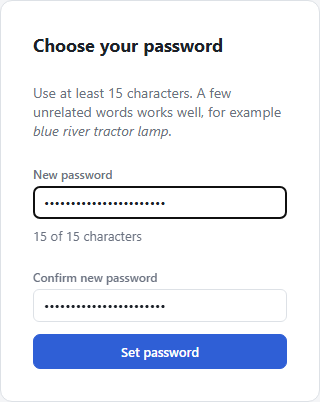
- Open the Taxlane Portal.
- Enter your email and your password. Click Show if you want to check what you typed.
- Click Sign in.
For your safety, Taxlane signs you out after an hour with no activity, and always after 12 hours. Use Log out (top right) when you finish, especially on a shared computer.
#If you forget your password
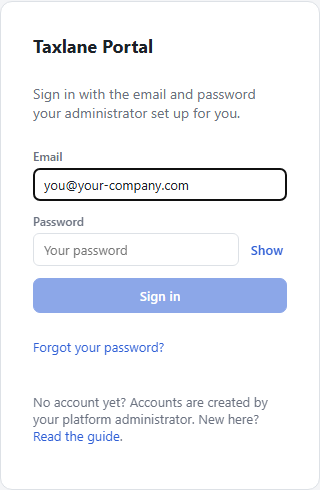
- On the sign-in page click Forgot your password?.
- Enter your email and click Send reset link.
- If the address belongs to an active account, an email arrives with a link. It works once and expires after 1 hour.
- Open the link and choose a new password.
You can ask for up to three links an hour, and only the newest works. When you choose a new password you are signed out everywhere else. The page gives the same reply whether or not the email is registered, so nobody can use it to find out who has an account. If nothing arrives after a few minutes, check your spam folder, then ask the owner of your account.
#If sign-in pauses
After several wrong passwords in a row, sign-in pauses for a short time, and for longer if you keep trying (up to 15 minutes). This protects your account from guessing. Wait, then try again, or use Forgot your password?. The message is the same whether the email or the password was wrong.
#First sign-in with a temporary password
If you were given a temporary password, Taxlane shows a Set a new password page after you sign in. Enter the temporary password, then your new password twice. Until you do this you can't use any other part of the portal.
#Finding your way around
The menu runs across the top of every page. On each page, Help with this page (top right of the content) opens the right part of this guide.
| Menu | What it's for |
|---|---|
| Invoices | See, search, issue and download invoices; bring in invoices from URA |
| Credit notes | Correct an invoice you've already issued |
| Goods & stock | Register your items and record stock coming in |
| Buyers | Check a buyer's tax number with URA |
| Branch | Your registered branch details |
| Webhooks | Have Taxlane tell your own software when something happens |
| Reference | Look up the unit and category codes URA uses |
| Activity | The record of everything sent and received |
| Team (owners only) | The people who can sign in for your company |
| API keys (owners only) | Keys that let your own software connect |
| Help | This guide, searchable, inside the portal |
#Owners and members
Every person has one of two roles.
| Owner | Member | |
|---|---|---|
| Issue invoices and credit notes | Yes | Yes |
| See invoices, stock, activity and everything else | Yes | Yes |
| Register goods, record stock, look up buyers | Yes | Yes |
| Sync from URA and Refresh from URA | Yes | No |
| Add and manage people (Team) | Yes | No |
| Create and revoke API keys | Yes | No |
| Register and deactivate webhooks | Yes | No |
Every company always has at least one owner. If you can't see a menu item or button this guide mentions, it's probably for owners only.
#Common tasks at a glance
Not sure where to start? Find what you want to do, then follow the page named in the second column.
| I want to… | Go to | Who can do it |
|---|---|---|
| Issue an invoice | Invoices, then + New invoice | Anyone |
| Issue many invoices at once | Invoices, then + Batch upload | Anyone |
| Find an invoice | Invoices, then the search box | Anyone |
| Get a PDF of an invoice for my customer | Open the invoice, then Download PDF | Anyone |
| Bring in invoices that were issued somewhere else | Invoices, then Sync from URA | Owners |
| Correct an invoice | Credit notes, then Submit a credit note | Anyone |
| See where a credit note has got to | Credit notes, then Check status | Anyone |
| Register a new item | Goods & stock, then + Register goods | Anyone |
| Add stock that has arrived | Goods & stock, then Record stock-in | Anyone |
| Check a buyer's tax number | Buyers | Anyone |
| Update my branch details | Branch, then Refresh from URA | Anyone |
| Add a colleague | Team, then Add team member | Owners |
| Reset a colleague's password | Team, then Reset password | Owners |
| Change my own password | Log out, then Forgot your password? | Anyone |
| Connect my accounting or sales software | API keys, then Create API key | Owners |
| Have my software told when an invoice is issued | Webhooks, then + Register webhook | Owners |
| See everything that was sent to URA | Activity | Anyone |
| Find an answer in this guide | Help, then the search box | Anyone |
#Invoices
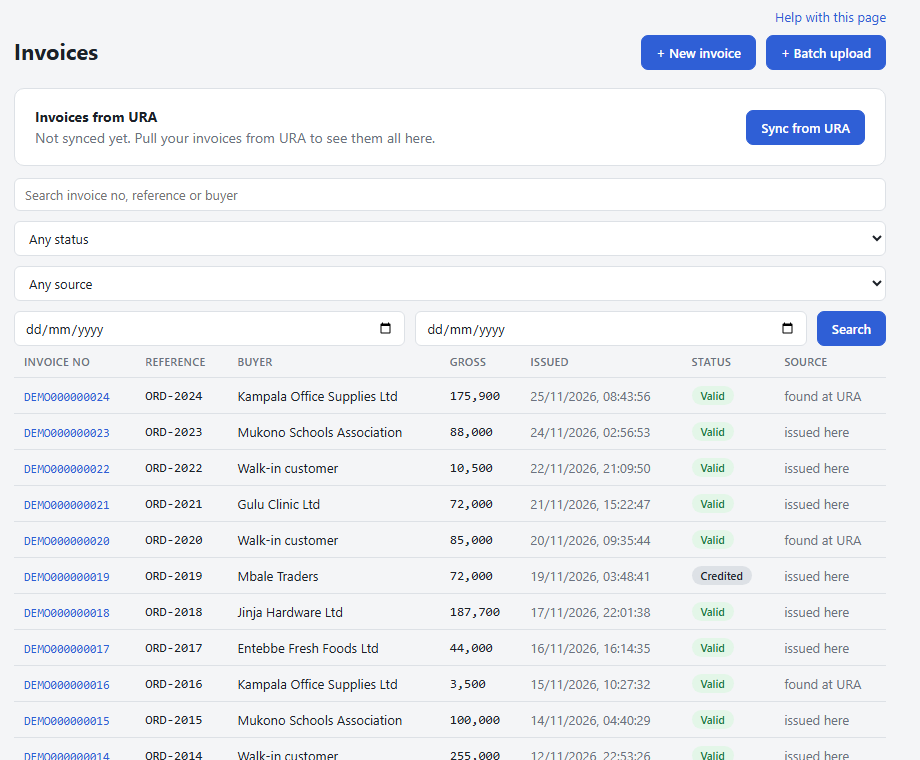
Open Invoices. This is your home page in the portal. It lists every invoice Taxlane holds for you: the ones you issued here and the ones brought in from URA.
#Reading the list
Each row shows the Invoice No (URA's number), your Reference, the Buyer, the Gross amount (the total including tax), when it was Issued, its Status and its Source.
Status can be:
- Valid: issued and accepted by URA.
- Credited: a credit note has been raised against it.
- Invalid: URA doesn't treat it as valid.
Source says where it came from: issued here (created in Taxlane) or found at URA (brought in from URA).
#Finding an invoice
- Type in the search box: an invoice number, your own reference, or part of a buyer's name. Click Search.
- Narrow by status (Any, Valid, Credited, Invalid) or source (Issued here, Found at URA).
- Click Clear to start again. Use the arrows at the bottom to move through pages.
#Opening one invoice
Click an invoice number to see everything about it on one page.
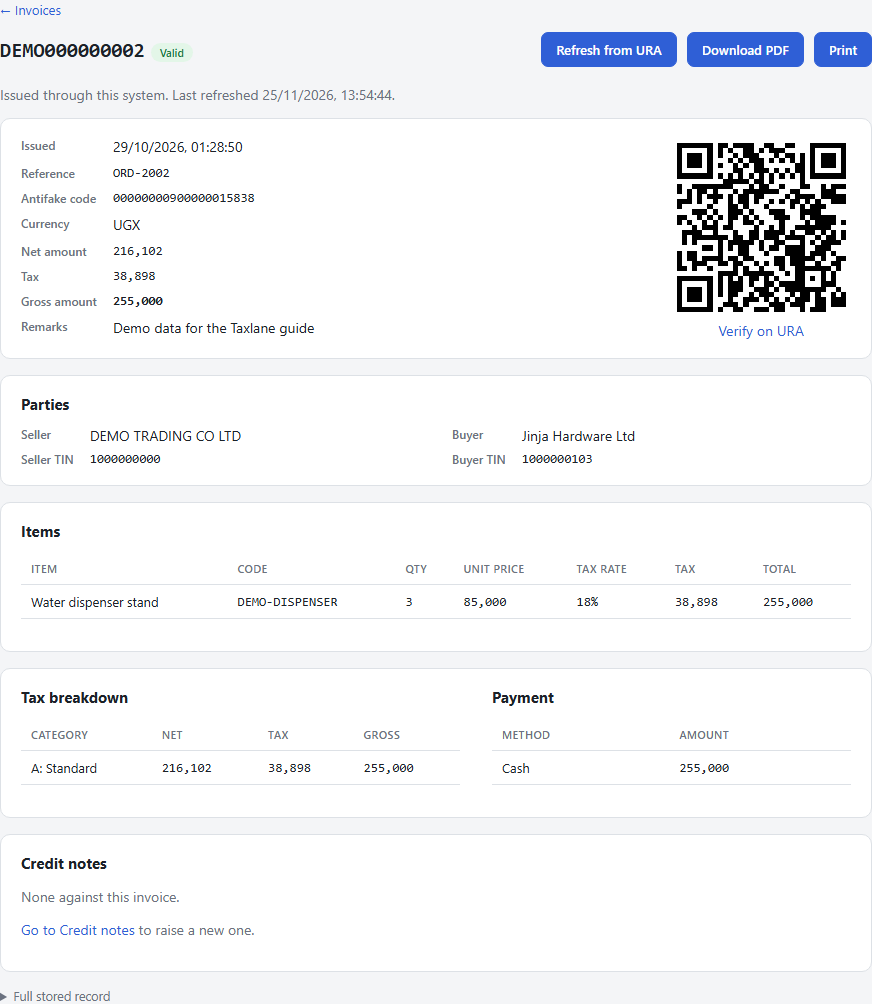
- The summary: when it was issued, your reference, the verification (antifake) code, the currency, and the net amount, tax and gross amount.
- The QR code: anyone can scan it to confirm the invoice is genuine on URA's site. Verify on URA does the same by link.
- Parties: who issued it and who it was issued to, with their TINs.
- Items: each line with its code, quantity, unit price, tax rate, tax and total.
- Tax breakdown and Payment: how the tax splits up and how it was paid.
- Credit notes: any raised against it, with their status.
Buttons at the top of the page:
- Download PDF saves a clean copy you can email or file. It includes the QR code.
- Print gives a paper copy without the menus.
- Refresh from URA (owners) fetches the latest details from URA, for example after a credit note is approved.
#Issuing a new invoice
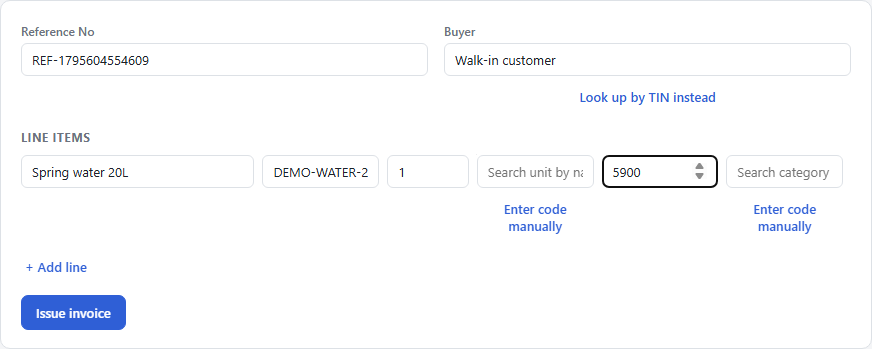
- On Invoices, click + New invoice.
- Reference No: your own number for this sale. Taxlane suggests one (it starts with REF-), and you can replace it with your own, such as your order number. Use a different reference for every sale. If you send the same reference twice by mistake, you get the original invoice back, never a second one.
- Buyer: type a name for a walk-in customer (the default is Walk-in customer), or click Look up by TIN instead, enter the buyer's TIN and click Look up. A buyer confirmed by TIN is named on the invoice with their tax number.
- Line items: for each thing you sold, fill in:
- Item name and Code: use the code you registered the item with.
- Qty: how many.
- Unit: the unit it's sold in. Start typing its name (for example piece or kilogram) and pick it from the list. If you already know the code, click Enter code manually and type it (PCE means pieces).
- Unit price: the price for one unit, including tax.
- Category: start typing a name (for example "water") and pick the product category URA expects, or click Enter code manually.
- Click + Add line for more items, or Remove to delete a line.
- Click Issue invoice, then confirm.
What happens next. Within seconds the invoice appears in your list with its URA invoice number, verification code and QR code. If URA refuses it, the portal shows URA's own reason and a code. Nothing is issued, and you can fix the problem and try again. See Troubleshooting.
#What the portal doesn't do yet
Be aware of the limits so you can plan around them. Invoices issued from the portal are in Ugandan shillings and apply the standard rate of VAT (18%) to every line. There are no discounts, excise duty or other currencies in the portal. If you need any of these, talk to your Taxlane contact before you go live.
#Issuing several invoices at once
Use + Batch upload when you have many invoices to file together, for example catching up after a break or moving old records over.
- Click + Batch upload.
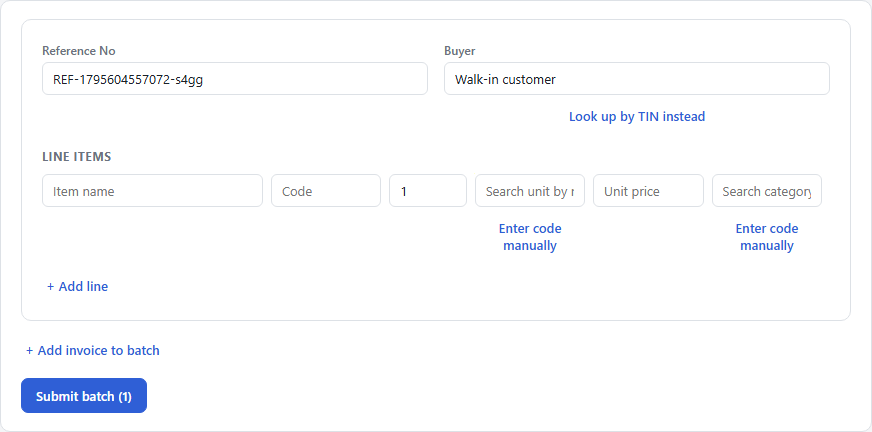
- Fill in one block per invoice (a reference, a buyer and its lines), exactly as for a single invoice. Click + Add invoice to batch for each extra invoice and Remove this invoice to drop one.
- Click Submit batch and confirm.
- You get a result for each invoice. URA judges each one separately, so some can succeed while others fail. Read the table, fix the failures and send those again.
#Bringing in invoices from URA
Invoices you issue in Taxlane appear on their own. If invoices were also issued some other way (for example directly on URA's website), bring them in:
- (Owners) Click Sync from URA.
- Choose the From and To dates. You can bring in up to one year at a time.
- Start it. It runs in the background, so you can keep working. You'll see progress ("120 of 300 done").
- When it finishes you'll see how many invoices were new, how many were refreshed, and how many failed.

You can run it as often as you like. It never creates duplicates. Invoices it brings in show found at URA as their source, and their credit notes come with them. Only one sync can run at a time.
#Fixing a mistake
An issued invoice can't be edited or deleted, because it is a tax document held by URA. To correct one, raise a credit note against it, then issue a new, correct invoice. See Credit notes.
#The numbers on an invoice
Every invoice shows three amounts, and they always add up the same way:
- Gross is the total the customer pays, tax included. It is the unit price multiplied by the quantity, added up over all the lines.
- Tax is the VAT contained in the gross amount.
- Net is the amount before tax: gross minus tax.
Here is a worked example. You sell 2 units of Spring water 20L at a unit price of 5,900.
| Line | Amount (UGX) |
|---|---|
| Quantity × unit price: 2 × 5,900 = gross | 11,800 |
| Tax: 11,800 ÷ 1.18 × 0.18 = tax | 1,800 |
| Gross − tax = net | 10,000 |
Taxlane works each line out to two decimal places and adds the lines together, so an invoice with several lines can show amounts with cents. The tax on the invoice is always the sum of the tax on its lines, and this is how URA checks it.
#Credit notes
A credit note corrects or reduces an invoice that has already been issued: goods were returned, an amount was wrong, or the sale was cancelled. You never edit an invoice. You raise a credit note against it instead.
Open Credit notes. The page has four parts: Eligible invoices, Submit a credit note, Check status and History.
#Which invoices can have one
Eligible invoices lists the invoices you can still raise a credit note against. Search it by buyer name or reference number. Click an invoice to fill in the form below for you.
#Raising a credit note
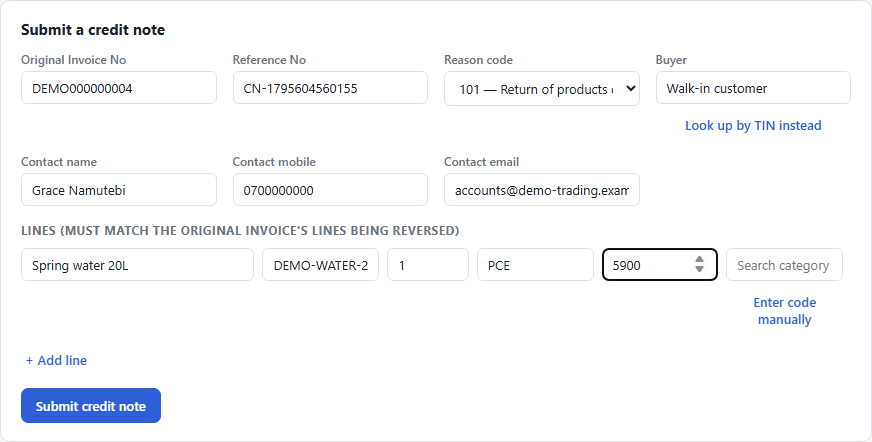
- In Eligible invoices, choose the invoice. The form is filled in with its details and items. (You can also type the Original Invoice No yourself.)
- Reference No: your own number for this credit note.
- Reason code: choose why. The choices are:
- Return of products due to expiry or damage
- Cancellation of the purchase
- Invoice amount wrongly stated, for example a miscalculation of price, tax or discounts
- Partial or complete waive-off of the sale after the invoice was sent to the customer
- Others
- Buyer, and optionally Contact name, Contact mobile and Contact email.
- Lines: the items being credited. They start as a copy of the original invoice. For a partial credit, change the quantities or delete the lines that aren't being credited. Each line must match the original invoice.
- Click Submit credit note and confirm.
#What happens after you submit
A new credit note is pending until URA approves it. Only then does it get its own credit note number. The statuses are:
- Submitted: waiting for URA.
- Approved: URA accepted it. The original invoice now shows Credited.
- Rejected: URA refused it. Nothing changed on the invoice. Read the reason, correct it and submit again.
- Voided: it was cancelled.
#Checking on a credit note
Use Check status, enter the original invoice number, and you see every credit note against it and where each one stands. History lists every credit note you've raised, with its number, reference, status, amount and date.
#Worked examples
The customer returns everything. Open Credit notes, find the invoice in Eligible invoices, and click it. The form fills in with all the original items and quantities. Choose the reason Return of products due to expiry or damage (or Cancellation of the purchase), and submit.
The customer returns some of it. Choose the invoice the same way, then change the quantities. Suppose the invoice was for 3 notebooks and 1 comes back: change the Qty on that line from 3 to 1, or delete the lines that aren't being credited. Only what is on the credit note is reversed.
The price was wrong. A wrong price can't be edited. Raise a credit note for the whole invoice (reason: Invoice amount wrongly stated), wait for it to be approved, then issue a new invoice with the correct price.
After you submit. Tell your customer a credit note is on its way. It's final once URA approves it. Open the original invoice any time to see the credit notes against it and their status.
#What isn't in the portal yet
Cancelling a credit note that URA has already approved isn't available in the portal yet. Email us if you need that.
#Goods & stock
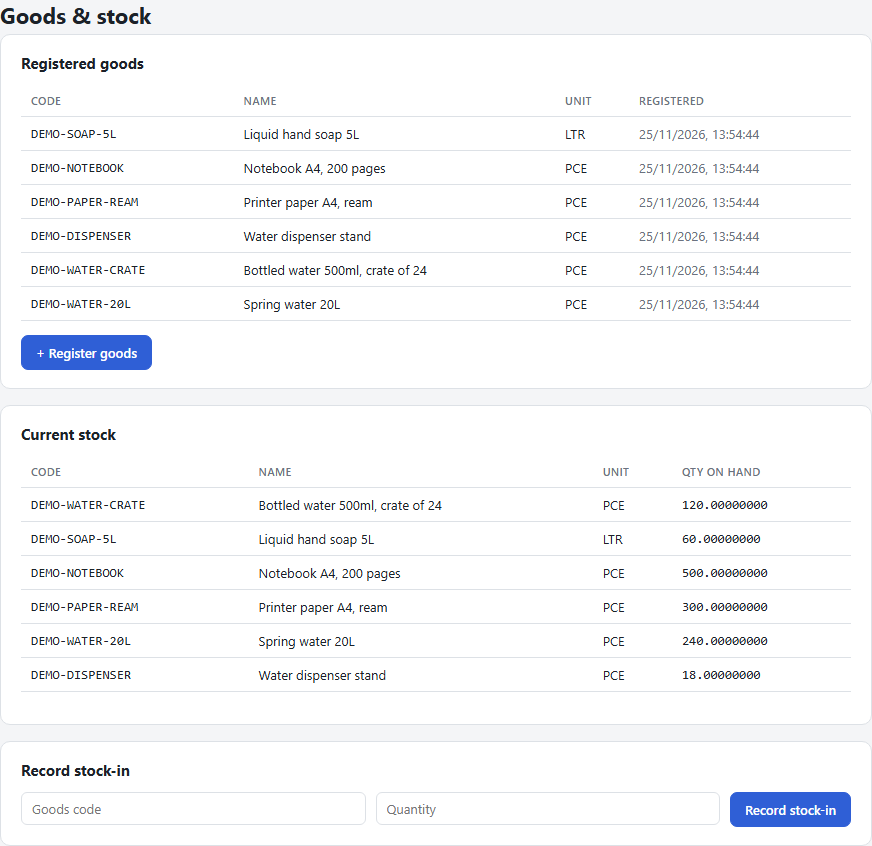
URA wants to know about every item you sell, and about your stock. Open Goods & stock.
#Why items are registered
Every item on an invoice must be registered with URA first. Registering gives each item a code (yours), a name, a unit, a price and a category URA uses to decide the tax treatment.
#Registering an item
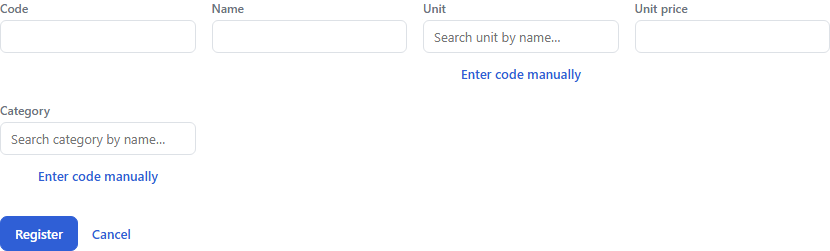
- Click + Register goods.
- Fill in:
- Code: your own code for the item. Keep it short and never reuse it for a different item.
- Name: what it's called on invoices.
- Unit: how it's sold (pieces, kilograms, litres...). Search by name.
- Unit price: the usual selling price including tax.
- Category: search by name (for example "water") and choose the closest match.
- Click Register.
The Registered goods table shows each item's code, name, unit and when it was registered.
#Recording stock coming in
When goods arrive, tell URA, so the stock you sell is backed by stock you've recorded.
- Find Record stock-in.
- Enter the item's Goods code and the Quantity that arrived.
- Click Record stock-in and confirm. This updates your stock record with URA and can't be undone.
Current stock shows the Qty on hand for every item.
#Choosing item codes
The code is how URA, your invoices and your stock recognise an item, so choose it with care:
- Keep it short and stable, for example WATER-20L. Use the same code your accounting or sales software uses, so the two always agree.
- Make it unique. Never reuse a code for a different item, even years later.
- Avoid spaces and unusual symbols. Letters, numbers and dashes are safest.
- Type it exactly the same way on invoices as when you registered the item. A single wrong letter means URA doesn't recognise the item and refuses the invoice.
#Keeping stock right
URA keeps a stock count for each item, and checks it when you invoice. Record stock coming in before you sell it, so the invoice isn't refused for lack of stock. If you see an Inventory shortage message, the fix is always the same: record the stock that arrived, then issue the invoice again. Check Current stock regularly against what is really on your shelves.
#Buyers
Open Buyers. Enter a buyer's Buyer TIN (and their NIN or BRN if you have it) and click Look up. Taxlane asks URA and shows the buyer's legal name, business name, TIN, email, phone and address.

Do this before you invoice a new business customer, so the invoice carries the right tax number. A customer who isn't registered for tax is a walk-in customer: just type a name when you issue the invoice.
If URA finds no match, check the number for typing mistakes before you try again.
#Branch and reference data
#Branch
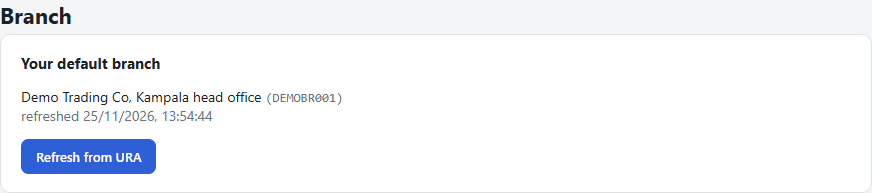
Open Branch to see your default branch exactly as URA has it registered. All your registered branches lists every branch if you have more than one. If your details have changed with URA, click Refresh from URA to bring them up to date.
#Reference data
Open Reference to browse the lists URA uses: units of measure, currencies, payment methods and the product category tree. Use it to find the right unit or category when you register goods or write an invoice line. You can search categories by name, for example "water".
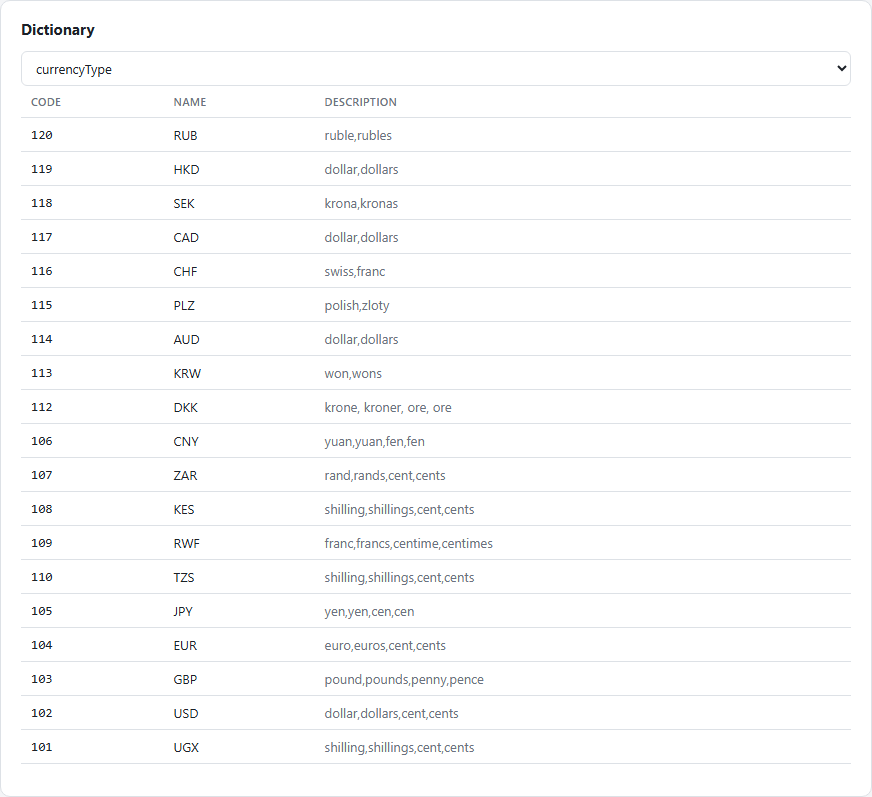
If a list says nothing is cached yet, ask your Taxlane contact to load it.
#Your team Owners
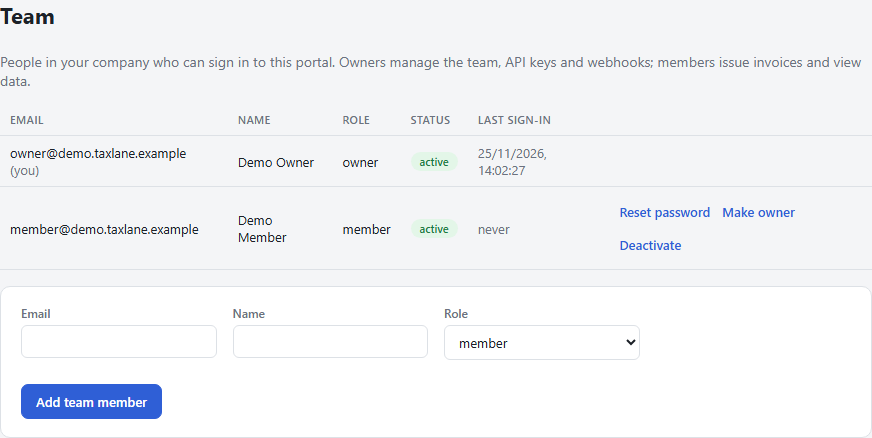
Owners only. Open Team to see everyone who can sign in for your company, with their role, status and last sign-in.
#Adding a person
- Enter their Email and Name, and choose a Role: member (the usual choice) or owner.
- Click Add team member.
- Taxlane shows a temporary password once. Copy it and give it to them privately. They'll choose their own password the first time they sign in.
#Changing what someone can do
- Make owner / Make member: change a person's role. Owners can manage the team, keys and webhooks.
- Reset password: signs the person out immediately and gives them a new temporary password.
- Deactivate: signs the person out at once and stops them signing in. Nothing they did is lost. Activate switches them back on.
#Rules worth knowing
- Every company must keep at least one owner. You can't demote or deactivate the last one.
- Give the owner role to as few people as you can. Owners can create API keys that connect to your company's data.
- When someone leaves your company, deactivate them the same day.
#Who should be an owner
- Have at least two owners if you can, so one person being away or leaving never blocks you from managing the team or API keys.
- Make the people who handle your accounts and your IT owners. Make everyone who simply issues invoices a member.
- Review Team every few months and deactivate anyone who no longer needs access.
#When a colleague joins
- Add them in Team with their work email and the role they need.
- Give them the temporary password privately (not in a group chat).
- Ask them to sign in, choose their own password, and read the Quick start in this guide.
#When a colleague leaves
- Open Team and click Deactivate next to their name the same day. They're signed out at once.
- If they knew an API key, open API keys, Rotate it, and give the new key to your developers.
- If they were the only owner, make someone else an owner first. The portal won't let you deactivate the last owner.
#Connecting your own software Owners
Owners and your developers. If your company uses its own accounting, sales or stock software, it can send invoices to Taxlane automatically, so nobody types them in twice.
#API keys
Open API keys. A key is a long secret code your software uses to prove it's yours.
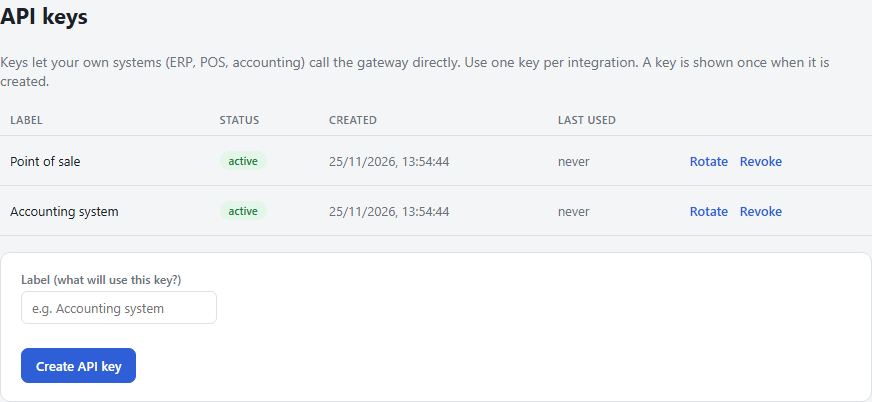
- Under Label (what will use this key?) type a name, for example "Accounting system", and click Create API key.
- The key is shown once. Copy it and give it to your developers straight away. You can't see it again.
- Use one key per system, so you can switch off one without affecting the others.
Keys list their Label, Status, when they were Created and when they were Last used.
- Rotate makes a fresh key and leaves the old one working for a few days (seven by default), so nothing stops while your developers switch over.
- Revoke switches a key off immediately. Anything still using it stops working.
You can have up to ten active keys at a time.
Keys that start with the label client-ui login belong to an older way of signing in to the portal and aren't used for it any more. Revoke them if nothing else uses them.
#Webhooks
Instead of your software repeatedly asking "has anything happened?", Taxlane can tell it. Open Webhooks.

- Click + Register webhook.
- Enter the Callback URL, the web address of your system that will receive the message.
- Choose the Events you want to hear about: Invoice issued and Credit note submitted (the list shows them as invoice.issued and creditnote.submitted).
- Taxlane shows a secret once. Give it to your developers so they can check each message really came from Taxlane.
Only owners can register or deactivate webhooks. The address must start with https and can't point to a private network. If your system is down, Taxlane tries again several times with growing gaps between attempts.
#For your developers
Almost everything the portal does for invoices, credit notes, items and stock can be done by software. Your developers can send invoices, credit notes, items and stock, and read everything back, using one secret key in plain JSON. Safe to retry: sending the same reference number twice returns the original invoice. Ask us for the technical API guide at taxlane@dfts.cloud.
#Activity record
Open Activity to see the permanent record of everything sent and received on your behalf. Click a row to see its full detail.
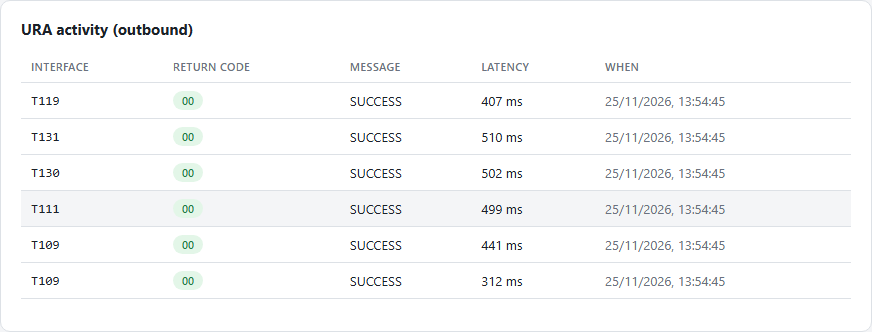
- URA activity shows every request Taxlane sent to URA for you: what it was, the answer code, how long it took and when.
- Gateway activity, below it, has the same layout for every request your own software sent to Taxlane: which function, whether it worked and when.
Nothing in this record can be changed or deleted afterwards. If there is ever a question about what was filed and when, this is your proof. The names and details of Taxlane staff are not shown to you, which keeps their details private.
#Security and privacy
- Your records are private to your company. Other companies can't see them, and you can't see theirs. This is enforced on every request.
- Passwords are never stored in a readable form. Nobody at Taxlane can see your password.
- Taxlane staff sign in with their own accounts, and every change to your account is recorded against a named person.
- A permanent record shows what was sent to URA and when.
- Sign-in protections: sign-in pauses after repeated wrong passwords, you're signed out after an hour of inactivity, and a password reset signs you out everywhere else.
- Emails from Taxlane only ever contain a one-time link to choose a password. We will never email you asking for your password. If you receive one that does, don't answer it. Tell us.
#What to do if something leaks
- A password: choose a new one with Forgot your password?, and tell us.
- An API key: revoke it in API keys (owners) and create a new one.
- A lost laptop or phone: sign in from another device and change your password, which signs the lost device out. Tell your owner.
#A day with Taxlane
This is an example of how a typical finance desk uses Taxlane, so you can see how the pieces fit together. The names are made up.
Monday morning: goods arrive. Amina receives 200 jerrycans of spring water. She opens Goods & stock, finds Record stock-in, types the item's code and 200, and confirms. Current stock now shows the new total.
A new business customer. A school wants to buy in bulk. Before invoicing, Amina opens Buyers, types the school's TIN and clicks Look up. URA confirms the legal name. She then opens Invoices, clicks + New invoice, clicks Look up by TIN instead under Buyer, and enters the same TIN. She adds the line (the item, 50 units, the unit price), clicks Issue invoice and confirms. A few seconds later the invoice is in her list with its number and QR code. She opens it, clicks Download PDF, and emails it to the school.
A walk-in sale. A passer-by buys two jerrycans. Amina clicks + New invoice, leaves Buyer as Walk-in customer, adds one line, and issues it. She prints the invoice from its page.
Sales from the till. The shop's till software is connected to Taxlane, so those invoices appear in the list by themselves, marked issued here.
A customer returns goods. Later in the week the school returns 5 jerrycans. Amina opens Credit notes, clicks the school's invoice under Eligible invoices, changes the quantity to 5, chooses the reason Return of products due to expiry or damage, and submits. The credit note is pending. The next day it shows approved, and the original invoice is marked Credited.
Month end. The owner, Joseph, opens Invoices and clicks Sync from URA for the whole month, to be sure nothing issued elsewhere is missing. He searches the list, downloads the PDFs his accountant needs, and glances at Activity to check that nothing was refused.
A new colleague. A new cashier joins. Joseph opens Team, adds her as a member, and gives her the temporary password. She signs in, chooses her own, and reads the Quick start.
#Troubleshooting
| What you see | What it means | What to do |
|---|---|---|
| Invalid email or password | The email or password is wrong, or sign-in is paused | Check for typos and Caps Lock. After several wrong tries sign-in pauses for a short time; wait, or use Forgot your password? |
| This link is invalid or has expired | Reset and invitation links work once and expire (1 hour for resets, 7 days for invitations) | Ask for a new one with Forgot your password?, or ask your owner |
| The Set password button is greyed out | The new password is shorter than 15 characters, or the two boxes don't match | Use a longer password, such as four unrelated words |
| Password change required | You're using a temporary password | Choose your own password first; nothing else works until then |
| An invoice is missing from the list | It was issued somewhere other than Taxlane | An owner can bring it in with Sync from URA |
| URA rejected an invoice and shows a reason and code | URA's own validation refused it | Read the reason. Common ones: an item isn't registered, there isn't enough stock recorded (Inventory shortage), or an amount doesn't add up. Fix the cause and issue the invoice again |
| A credit note is still pending | URA hasn't approved it yet | Wait. If it has been a long time, email us the invoice number |
| No taxpayer found for this TIN | URA has no business with that number | Check the digits and try again |
| No units or categories cached | The reference lists haven't been loaded yet | Ask your Taxlane contact to load them |
| A menu item or button is missing | It's for owners only | Ask the owner of your account |
| You were signed out suddenly | An hour with no activity, 12 hours since sign-in, or someone reset or deactivated your account | Sign in again |
| No email arrived | It's in spam, or the address isn't the one your account was created with | Check spam; ask your owner to check the address |
| "Could not reach the server" | Your internet connection dropped, or Taxlane is briefly unavailable | Check your connection and try again in a minute. If you were issuing an invoice, look in Invoices before you retry, in case it went through |
| "Device … has no active signing key registered" | Your connection to URA isn't fully set up yet | Don't try to issue anything yet. Email us and we'll finish the setup |
| A table is empty or keeps loading | The page couldn't get its data | Refresh the page. If it persists, email us with the page name |
| An item doesn't appear when I search for a category or unit | The reference lists use different words | Try a shorter or different word, or browse Reference |
#FAQ
Do I need to install anything? No. The portal runs in your web browser.
Which browsers work? Current versions of Edge, Chrome, Firefox and Safari.
Can several people use the portal at once? Yes. Each person signs in with their own email and password.
Can I edit or delete an invoice after it's issued? No. It's a tax document held by URA. Raise a credit note and issue a corrected invoice.
What's the difference between an invoice and a credit note? An invoice records a sale. A credit note reduces or cancels an invoice that was already issued.
What if I issue the same invoice twice by accident? If you use the same Reference No both times, Taxlane returns the original and files nothing new. With different references they are two separate invoices, so raise a credit note for the extra one.
Does the unit price include tax? Yes. Enter what the customer pays for one unit. Taxlane works out the net amount and the tax.
Which currency and tax rate does the portal use? Ugandan shillings and the standard 18% VAT on every line. See What the portal doesn't do yet under Invoices.
Why did URA reject my invoice? The portal shows URA's reason. The most common causes are an unregistered item, not enough recorded stock, or amounts that don't add up. See Troubleshooting.
How do I get a copy of an invoice for my customer? Open the invoice and click Download PDF, then email it.
Can my customer check that an invoice is real? Yes. Anyone can scan the QR code on it to confirm it on URA's site.
I forgot my password. Do I need to ask someone? No. Use Forgot your password? on the sign-in page.
Who can see my invoices? People you've added to your company's account, and nobody from other companies. Taxlane staff can help with setup and support but can't issue invoices for you.
How do I add a colleague? Owners: Team, then add their email and role. See Your team.
How do I connect my accounting software? Owners: create a key in API keys and give it to your developers. See Connecting your own software.
What does it mean when a credit note is pending? URA hasn't approved it yet. It gets its number once approved.
How do I go from test to live? Ask your Taxlane contact. It only happens when you say you're ready.
How long are my records kept? Your invoices and the activity record stay in Taxlane. Ask your Taxlane contact if you have specific retention needs.
Can I use Taxlane on my phone? The portal is built for a computer or tablet. Many pages work on a phone, but forms are easier on a larger screen.
What if my internet drops while I'm issuing an invoice? Look in Invoices before you try again. If the invoice is there, it was filed. If it isn't, issue it again with the same Reference No. Taxlane checks first, so you never end up with two.
What's the difference between Reference No and Invoice No? The Reference No is yours: your order number, or one Taxlane suggests. The Invoice No is URA's: it's assigned when URA accepts the invoice, and it's the number that identifies the invoice on its QR code.
Can I choose my own invoice numbers? No. URA assigns them. Use the Reference No for your own numbering.
Can I see invoices from before I started using Taxlane? Yes, if URA holds them for your tax number. An owner clicks Sync from URA and brings in up to a year at a time.
Why do some amounts have cents? Taxlane works out the tax on each line to two decimal places. See The numbers on an invoice.
Which branch do my invoices use? Your default branch, shown in Branch.
Can two people issue invoices at the same time? Yes. Each person signs in separately and everything is recorded.
How do I know a webhook message really came from Taxlane? Every message is signed with the secret shown when you registered the webhook. Your developers check the signature before trusting it.
Should I keep paper copies? Ask your tax adviser. Taxlane keeps your invoices and you can download a PDF of any of them at any time.
Is there a phone number for support? Not at the moment. Email taxlane@dfts.cloud.
#Words you'll hear
- EFRIS: URA's electronic fiscal receipting and invoicing system, where every sale has to be reported.
- URA: Uganda Revenue Authority.
- TIN: Taxpayer Identification Number, the tax number of a business or person.
- NIN: National Identification Number, used to identify a person.
- BRN: Business Registration Number.
- Tax invoice: the document you give a buyer for a sale. With EFRIS, URA gives each one a unique number and a QR code.
- Invoice number (also called the fiscal document number): the unique number URA gives an invoice.
- Verification code (also called the antifake code): a code on the invoice that proves URA issued its number.
- QR code: the square barcode on an invoice. Scanning it checks the invoice with URA.
- Credit note: a document that corrects or reduces an invoice that was already issued.
- Debit note: a document that increases an invoice. The portal doesn't issue these.
- Reference number: your own number for a sale or credit note, used so the same one is never filed twice.
- Gross, net and tax: gross is the total the customer pays, net is the amount before tax, and tax is the VAT included in the gross.
- VAT: value added tax, 18% at the standard rate.
- Walk-in customer: a buyer with no tax number.
- Item (or goods): something you sell, registered with URA.
- Unit: how an item is counted, such as a piece, kilogram or litre.
- Category: the group URA files a product under, which decides its tax treatment.
- Stock-in: recording goods you've received.
- Test setup (sometimes called the sandbox): URA's practice system, where nothing is real.
- Live (sometimes called production): the real system, where invoices are real tax documents.
- Device: your registered connection to URA. Your Taxlane contact manages this.
- Digital certificate: the secure identity that signs your invoices. Your Taxlane contact manages this.
- API key: a secret code that lets your software talk to Taxlane.
- Webhook: a message Taxlane sends to your software when something happens.
- Sync: bringing invoices from URA into Taxlane.
- Owner / member: the two roles for people at your company.
#Getting help
Email us at taxlane@dfts.cloud. To help us answer quickly, include:
- your company name,
- the invoice or credit note number, if there is one,
- what you were trying to do and what you saw (a screenshot helps),
- your email address.
Please never send passwords or API keys by email, even to us. We'll never ask.